How to Add a QR Code to Your Resume
Key Takeaway
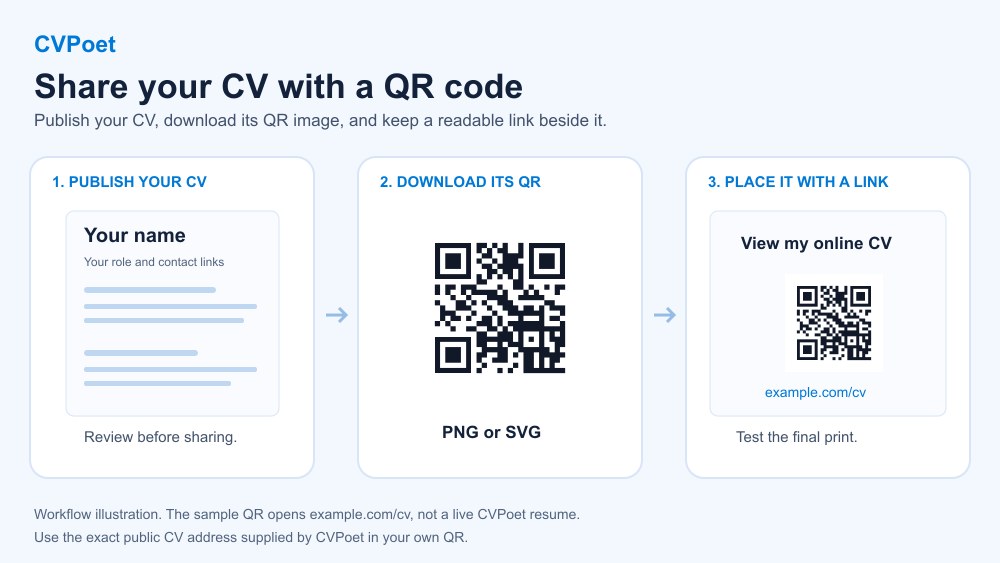
Create a QR code for your public CV with CVPoet, add it to a printed resume or career-fair handout, and keep a readable link beside it.
To add a QR code to your resume, choose a page you want the reader to open, generate its QR image, and place the image beside a readable web address. Keep your contact details and essential qualifications in the resume itself.
If your CV is in CVPoet, start with its built-in sharing workflow: publish the CV, open its public page on a desktop browser, select the QR code button, and download PNG or SVG. You do not need a separate QR service for that public CV link.
A QR code can be useful on a printed resume, business card or career-fair handout. For an online application, a clickable text link is usually easier to open on the same device. Follow the employer's submission instructions and keep the QR code optional.
How to create a resume QR code with CVPoet
-
Build and save the CV you want to share
Open CVPoet, sign in or create your account, and write your CV. You can start from a resume example or choose a template. Replace every sample name, date and achievement with your own information. Select Update to save your changes. -
Review the information before publishing
Check the contact details, location, work history and links you have included. Anyone with the public link can view that information. Leave out details you do not want to share publicly. Search-engine exclusion does not make a public link private. -
Publish and open the public CV
Select Publish in the editor and review the public-link settings. Open the resulting public CV. Copy the exact address supplied by CVPoet rather than typing a guessed handle. Free accounts can publish one public resume page; additional public pages require a Job Search Pass. -
Download the native QR image on desktop
On the public CV page, select the button labelled Show QR code. The dialog says Scan to open this CV and shows the destination address. Choose PNG for an image you can insert into a document, or SVG for a layout tool that supports vector files. The QR button is available in the desktop toolbar. -
Place it beside a readable link
Insert the downloaded image into a document or layout tool that accepts images. Put a short label such as View my online CV beside it, followed by the actual public CV address. Keep the image square, dark on white, and clear of nearby text. CVPoet provides the QR download separately; it does not automatically add it to your exported resume PDF. -
Check the final file and printed copy
Open the exported document and check that the readable link is correct. Scan the QR with a second device, then print a copy at its intended size and scan again. Check that the destination opens without signing in. If the printed code is hard to scan, enlarge it and increase the clear white space around it before distributing copies.
Where should you put the QR code?
Use a small, clearly labelled area beside your contact links when there is room. A career-fair handout or business card is another option if adding the code would crowd the resume. Do not replace your name, email, phone number, work experience or qualifications with a QR code.
Keep the readable address clickable in a digital file. A reader viewing the resume on a phone may prefer tapping a link to scanning a code on the same screen. The QR image is an extra route to the page, not evidence that an applicant tracking system will read it.
Portfolio links can belong in a resume's contact section or a separate additional-information section. Santa Clara University's career guidance also recommends following the employer's specific portfolio-submission instructions.
Keep the QR code readable
Use a square image with dark modules on a plain white background. Avoid stretching it, covering part of it with a logo, or placing it over a photograph.
The white border around a QR code is called its quiet zone. DENSO WAVE specifies at least four modules of clear space on every side. A module is one of the small squares in the code. Preserve that border and keep nearby text or decoration outside it.
There is no single print size that guarantees a successful scan. The length of the link, code density, print quality, lighting and reading distance all matter. Test the final printed version rather than relying on the on-screen preview.
Keep the public CV current and respect its privacy limits
After editing the CV, select Update to save. A static QR that contains the same public address can still open the updated CV; changing the address is a separate matter, so recheck any QR you have already printed. Saved edits and unpublishing can take up to two minutes to appear for other visitors. Recheck the exact public link before sending a new application or printing another batch.
Anyone who receives or is forwarded the link can view the published CV. CVPoet asks search engines not to index public CV pages, but this does not restrict who can open the link. Unpublishing does not remove copies or screenshots someone already saved.
The free plan includes one public resume page. A Job Search Pass allows additional public pages if you want separate versions. You can check the current limits on CVPoet's pricing page.
Optional: use QRLynx for a separate resume or portfolio link
-
Choose the exact destination
Use CVPoet's native QR when you are sharing its public CV page. If you want a separately designed QR for that link or a different destination, such as a portfolio, first open the destination in a signed-out browser and confirm it is the page you intend to share. -
Create a Website / Link QR in QRLynx
Open QRLynx's Website / Link QR tool and paste the complete public address into Website URL. A static URL QR encodes that address directly; changing the destination address later requires a new static code. Updating the CV at the same public address does not. If you need to replace the destination later, sign in to QRLynx, enable dynamic mode, and save the QR to your account before downloading. A managed dynamic QR depends on the QRLynx redirect staying available. -
Download and label the code
Use a dark-on-white design with a clear border. CVPoet includes PNG and SVG for its native public-CV QR. QRLynx has separate plan conditions: a signed-in free Starter account can download a clean PNG; SVG requires Starter+ or higher. QRLynx also offers an A4 PDF containing a raster QR image on those paid plans. Guest QRLynx downloads include a watermark. Place the image beside a readable address and a label explaining what it opens. You still insert it into the resume or handout using your document tool. -
Test the final resume or handout
Scan the downloaded image and then the printed version at its final size. Confirm the destination is accessible without your account. Keep your qualifications and a readable link in the document even when the scan works.
About the tools in this guide
CVPoet's native public-CV QR is the first option in this guide. QRLynx is an optional separate tool when you want a QR for another destination or a separate design.
For help choosing between a portfolio, LinkedIn, GitHub or contact destination, read QRLynx's resume and CV QR guide. It also covers application-system cautions and final-file checks.
Resume QR code questions
Can I make a QR code for my CV in CVPoet?
Does CVPoet automatically insert the QR into my resume PDF?
Should I replace a portfolio link with a QR code?
Will a resume QR code improve my ATS score or get me an interview?
Is a published CV private because it is excluded from search engines?
Build the CV you want to share
Start with a CVPoet example or your own content. Review the public information before publishing your CV.